 CloudPhone
 Blog
Lineage M idle setup guide
Lineage M's auto-hunt is built for 24/7. Here is how to move it onto a cloud phone, set return-to-spot and auto-resupply, and keep farming with your PC switched off.
Can you idle Lineage M 24/7 on a cloud phone?
Yes. Install Lineage M on a CloudPhone Go cloud phone, set up auto-hunt, auto-resupply and what happens on death, then close the browser: the game keeps running in our Taiwan data centre while your own phone and PC are switched off. Whether you can sleep easy comes down to your idle settings, and this guide walks through them one by one.
A cloud phone is a real Android phone that lives in a data centre and is controlled from any browser. It never runs out of battery, never overheats and never burns in its screen, which suits a game whose auto-hunt was designed for long sessions in the first place.
CloudPhone Go actually started with Lineage M. Our team member 胖胖 used to idle it on overseas cloud phones, and the lag from Taiwan was so bad he could not leave it overnight with any peace of mind. So we built one in Taiwan.
Why not just idle on your own phone or an emulator?
Plenty of players start with an old phone or a PC emulator. It works, but it has costs:
| Idle setup | Estimated monthly electricity | Main problems |
|---|---|---|
| PC running an emulator all day | About NT$180 to 250 (100 W at NT$2.5 to 3.5 per kWh) | PC can never sleep, fan noise, Windows updates restart it |
| Old phone on a charger | About NT$10 (5 W) | Constant charging can swell the battery, heat, burn-in, nobody notices Wi-Fi drops |
| Your main phone | Very little | You cannot use your phone, and battery health suffers |
| Cloud phone | No extra home electricity | Monthly fee; an unstable network makes the stream lag (the game keeps running) |
The electricity figures are rough estimates based on Taiwan residential rates of about NT$2.5 to 3.5 per kWh; yours depend on your tariff. The real benefit is that the device doing the idling is finally separate from the device you actually use.
On the Bahamut Lineage 2M board in 2021, 西禾古月 summed up the old view: cloud phones are only for idling, so do quests and bosses on your own phone. With high-latency cloud phones that was true. From Taiwan fibre and 5G we measured a median under 10 ms to our Taiwan data centre (September 2026; it varies by network), so stepping in to move spots or restock is no longer a fight with lag.
What do you need before you start?
- A CloudPhone Go plan or a 12-hour trial card (email hello@cloudphonego.com for a code), plus a Google account to sign in.
- Your Lineage M account. Check how it is linked and that you know the login details, so you are not locked out on the cloud phone.
- Enough Adena for auto-resupply to keep buying potions and scrolls.
- A farming spot you know well, with monsters that suit your level.
- A stable connection for setup and the occasional check. You do not need to stay connected while idling.
Move Lineage M to a cloud phone in 6 steps
- Open cloudphonego.com in any browser, sign in with Google and launch your cloud phone.
- Open Google Play on the cloud phone and install Lineage M. The first resource download takes a while.
- Sign in, enter your character and set graphics to a sensible level in the settings.
- Go to your farming spot, turn on auto-hunt, and configure potions, resupply and death handling as described below.
- Watch for 10 to 15 minutes to confirm the character fights, drinks, returns to town to restock and comes back.
- If all looks good, close the browser tab. The cloud phone keeps idling in the Taiwan data centre.
Step 5 is the one people skip, and it is the one most worth your time. Most nights that go wrong were broken from the start; nobody was watching.
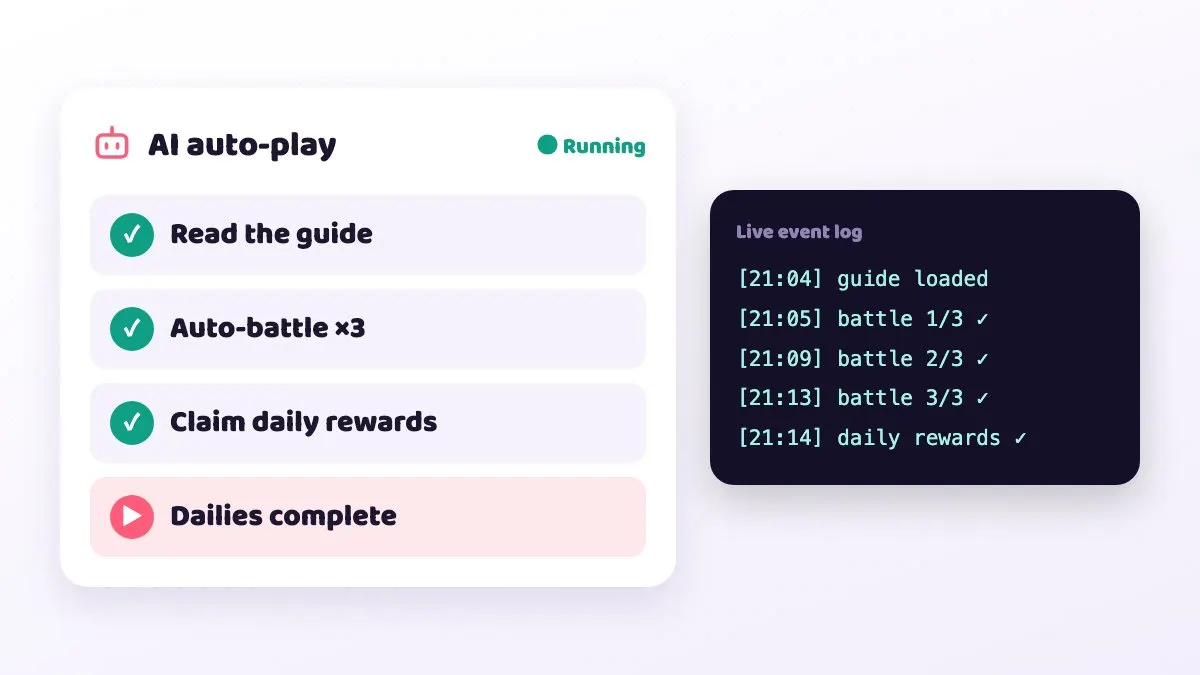
How should you configure auto-hunt for a safe night?
Lineage M's auto-hunt options change with updates and the labels may differ slightly, but these are usually the ones that matter:
- Potion threshold: drink automatically when HP drops below a set percentage. The more dangerous the spot, the higher the threshold. Better to over-drink than to die.
- Return to town when potions run low: turn on auto-buy and make sure you have enough Adena for the next round. This is your overnight lifeline.
- Death handling: set the character to return to town and then back to the farming spot after death, or one death means a night spent standing in town.
- Inventory and weight: a full bag or heavy load usually hurts looting and recovery. Clear the bag and sell junk before you leave.
- Hunting range: use a fixed range on a map with the right monster density so the character does not wander into crowded or more dangerous areas.
- Graphics and frame rate: lower them while idling to lighten the load, then raise them again when you play bosses by hand.
Lineage M also has PvP, and dying usually costs experience and can drop items. Pick quiet spots with monsters you can handle, rather than fighting over the most popular ones for a little more efficiency.
Which plan gives the best value?
| Use case | Plan | Beta monthly | Beta yearly per month |
|---|---|---|---|
| Buffer alt only, or light farming | Starter, 2 cores 4 GB | NT$489 | NT$419 |
| One main character idling overnight at normal graphics | Standard, 4 cores 8 GB | NT$929 | NT$789 |
| High graphics, or more headroom for the game | Performance, 8 cores 16 GB | NT$1,749 | NT$1,489 |
Every plan includes 32 GB of storage and dedicated resources on a flagship 8-core ARM processor. Lineage M's resource files are large, but 32 GB is usually enough for the game.
A common pledge setup is a Standard plan for the main and a Starter plan for the buffer alt, each idling independently with no account switching. Check the game's rules on multiple accounts before you run more than one.
During the beta both monthly and yearly prices are an extra 10% off, and you can cancel any time. After you cancel renewal you can use the service until the end of the paid period; fees already paid are not refunded.
How do you keep an eye on it from work or on the go?
The worst thing about idling is a problem nobody sees. Because CloudPhone Go opens the same cloud phone from any browser, you can:
- Check at lunch in Safari or Chrome on your phone: is the character still at the spot, are potions holding up?
- On iPhone, add it to the Home Screen for one-tap access, or use picture-in-picture to keep it in a corner while you work.
- Answer a pledge call by playing manually in the browser, then switch back to auto-hunt.
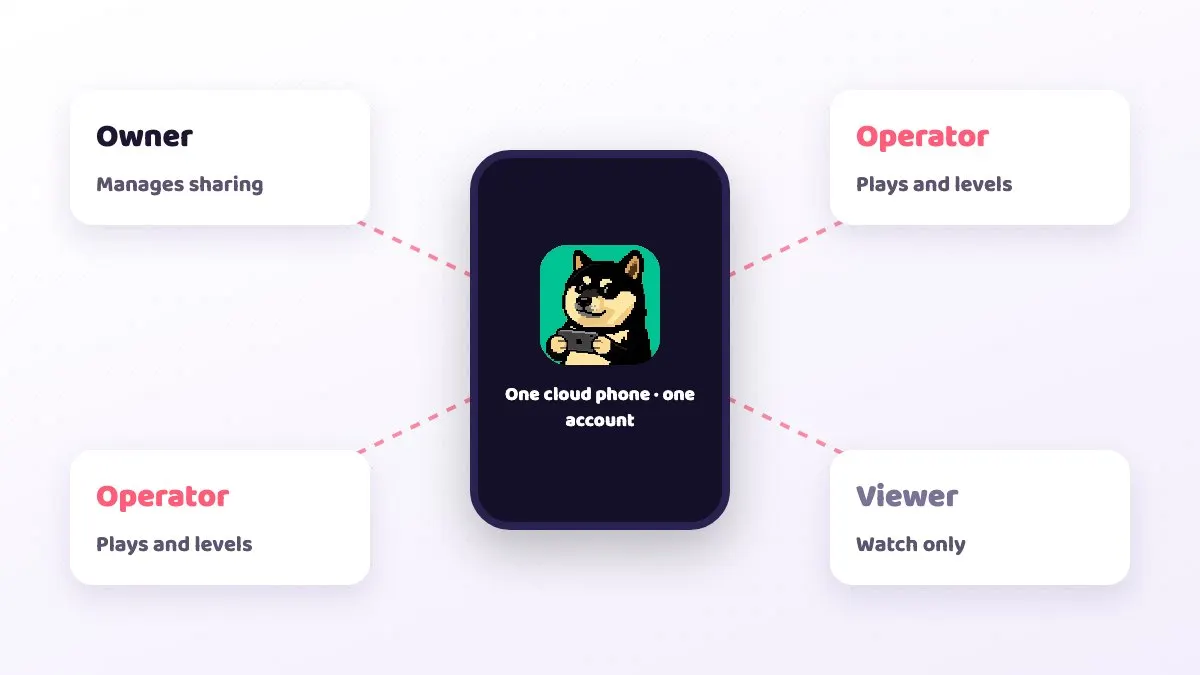
- Use device sharing to give a trusted friend the viewer role to glance at it, or the operator role to control it. Check the game's rules on account use before sharing.
Several connections can be open at once, so you can watch from the office and pick it up on your home PC later.
Common idle mistakes and fixes
| What you see | Usual cause | How to avoid it |
|---|---|---|
| Character is in town in the morning | No return-to-spot after death, or potions ran out without resupply | Enable return-to-spot and auto-resupply, and keep enough Adena |
| Character standing still | Full bag, too much weight, or stuck on terrain | Clear the bag before leaving and pick a spot with simple terrain |
| Back at the login screen | Scheduled maintenance, an update, or the same account logged in elsewhere | Log in again and restart auto-hunt after maintenance; do not log in to the same account on your phone while idling |
| Whole cloud phone unresponsive | The game or device has hung | Reboot from the control bar; the watchdog also tries to recover it |
| Stream laggy or controls slow | Your local network | Check the RTT, packet loss and FPS indicator; the game itself keeps running in the data centre |
One more note: going beyond the game's built-in auto-hunt with scripts or AI that play the game for you may break Lineage M's terms of service. CloudPhone Go provides those tools, but whether and how you use them is your decision and your risk.
FAQ
Q: Does auto-hunt stop when I close the tab? A: No. Only the video to your screen stops; the cloud phone keeps running in the data centre.
Q: Can I check on it from work? A: Yes. Open the same cloud phone from your phone or office browser to move spots, restock or answer a pledge call. A corporate VPN or strict firewall may block the connection; mobile data usually works.
Q: Can one cloud phone run two accounts? A: One account per device is the most stable and easiest to manage. Performance has more resources, but Lineage M generally does not support two characters running on the same device at once.
Q: Will idling on a cloud phone get me banned? A: The cloud phone is a real Android device, and using the built-in auto-hunt is the same as idling on your own phone. We cannot guarantee how any account will be treated, so follow the game's terms of service.
Q: Can I try it first? A: Yes. Email hello@cloudphonego.com for a 12-hour trial card, which is just enough to test a full night of idling.