 CloudPhone
 Blog
Cloud phone vs emulator vs spare phone: which is cheapest?
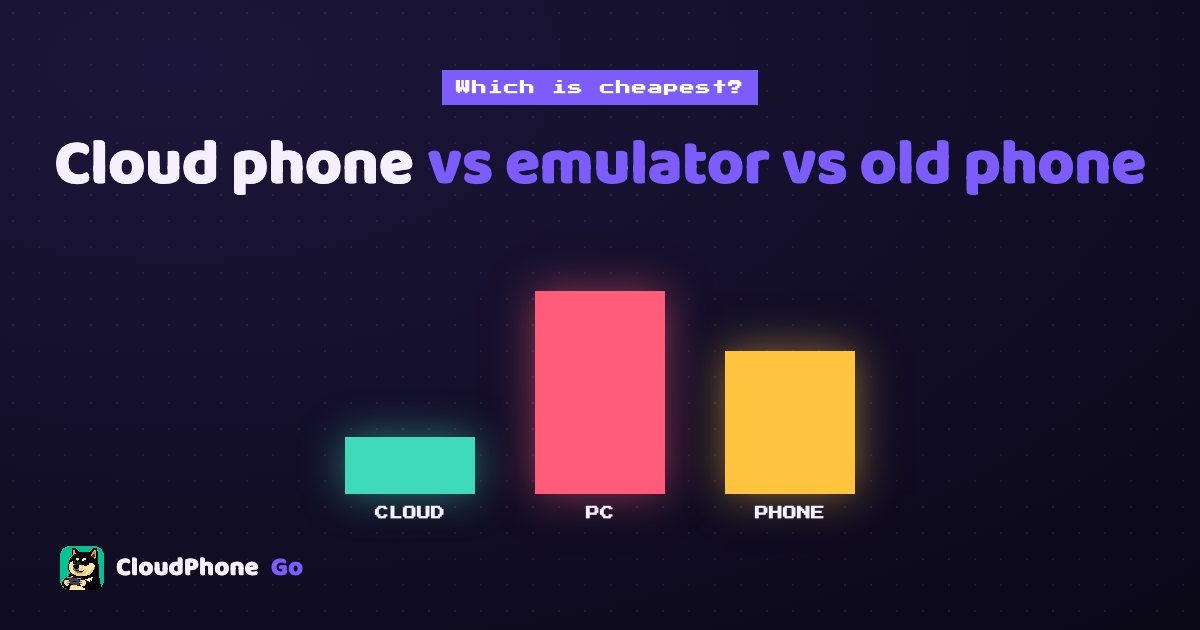
Idling costs more than a monthly fee. Count electricity, hardware and your time, and the three options differ a lot.
Cloud phone, emulator or spare phone: which is cheapest for idling?
If you need to idle 24/7 and don't want a PC running all day, a cloud phone usually has the lowest total cost. If your PC is already on all day anyway, an emulator adds the least, but you can only play on that PC. A spare phone is the cheapest way to start, but it must stay plugged in and you can only control it on that phone.
Most people compare idling options by subscription price alone. The cloud phone costs money, the emulator is free, so the emulator wins. But the real cost of idling also includes electricity, hardware wear, noise and the time you spend tied to one device just to keep an eye on it. This post lays out all three so you can pick based on your own setup.
What are the three ways to idle a mobile game?
It helps to be clear about what each option actually is, because they work very differently and suit different players.
- Cloud phone: a real Android phone sitting in a data centre that you control from a browser. With CloudPhone Go, the phone is in a Taiwan data centre and you control it from Safari on iPhone or any modern browser on Android, Windows, Mac or Linux. There is no app to install, and the phone keeps running 24/7 after you close the browser.
- PC emulator: an Android emulator installed on your own computer, using your CPU, memory and electricity to run the game. To idle, the PC has to stay on.
- Spare phone: an old phone (or one you buy for the purpose) left on a charger with the game open around the clock.
All three keep the game running. The differences are who pays for the power, who absorbs the hardware wear, and whether you can check on your idle from somewhere else.
How much does each option cost per month?
| Item | Cloud phone | PC emulator | Spare phone |
|---|---|---|---|
| Hardware | 0 | PC you already own (extra if you build one for idling) | 0 if you have one, NT$5,000+ to buy |
| Monthly electricity (estimate) | 0 (not your power) | About NT$180 to 250 (100 W all day) | About NT$10 (5 W charging all day) |
| Subscription | From NT$419 (Starter, yearly) | 0 | 0 |
| Keeps running when your device is off | Yes | No | Only while it stays plugged in |
| Check it from an iPhone or another PC | Yes, in a browser | No | Only on that phone |
Electricity is estimated at Taiwan residential rates of about NT$2.5 to 3.5 per kWh, running 24 hours for 30 days. A 100 W PC uses roughly 72 kWh a month, which works out to about NT$180 to 250. A PC with a dedicated graphics card, or one running several emulator instances, usually draws more, and summer rate tiers push the number up further.
Cloud phone prices here are CloudPhone Go Beta prices. Starter (2 cores, 4 GB) is NT$489 monthly or NT$419 a month billed yearly. Standard (4 cores, 8 GB) is NT$929 monthly or NT$789 a month yearly. Performance (8 cores, 16 GB) is NT$1,749 monthly or NT$1,489 a month yearly. Every plan includes 32 GB of storage and you can cancel any time.
What is the difference over a full year?
Stretching the comparison to a year makes the gaps easier to see. These estimates assume the most common case: one account, idling 24 hours a day.
| Scenario | Approximate yearly cost | Notes |
|---|---|---|
| Cloud phone, Starter yearly | NT$5,028 | No power bill, no hardware, viewable from any device |
| Emulator on a PC switched on only for idling | About NT$2,160 to 3,000 in electricity | Plus wear and noise; idle stops when the PC is off |
| Emulator on a PC that is on all day anyway | Close to 0 extra | Cheapest, but the idle is tied to that PC |
| Spare phone you already own | About NT$120 in electricity | You handle battery ageing, updates and game compatibility |
| Buying a phone just for idling | NT$5,000+ plus electricity | Most expensive in year one, cheaper later |
On money alone, a PC that is already on and a spare phone already in your drawer are the cheapest. But if your PC normally gets switched off, you want a quiet bedroom, or you want to check progress from your iPhone while you are out, the extra few thousand dollars for a cloud phone buys you freedom from babysitting hardware.
What are the hidden costs?
- PC on all day: fan noise, a warmer room, and wear on the graphics card and drives. Shut it down to sleep or before leaving home and your idle stops.
- Multiple emulator instances: two or three alts need a lot more RAM and CPU, and they compete with anything else you want to do on the PC.
- Spare phone: being on a charger for months can swell the battery, a screen left on risks burn-in, and an old Android version may fall behind what new game versions require.
- Your time: a frozen phone or an emulator that crashes after an update needs someone in front of it. If you are at work, it waits until you get home.
- Cloud phone: you need a connection to control it, but the idle doesn't depend on your network. If your connection drops, the cloud phone keeps running and you pick up where it is when you reconnect.
One more point people miss: an emulator runs Android on a PC, and some games detect emulator environments and may limit features or ask for extra verification. A cloud phone is a real ARM Android phone, so the game sees an ordinary phone.
Which option suits which kind of player?
- Cloud phone: you are out during the day and want to check your idle from your phone; you use an iPhone but want Android-only games or Android alts; you don't want a noisy PC running all night; you play MMOs that need 24/7 farming and grinding.
- Emulator: your PC is on all day anyway as a work machine or server; you mostly play at your desk and don't need to check from outside; you prefer keyboard and mouse.
- Spare phone: you already have a working old phone; you only idle one account in a light game; you are fine dealing with crashes when you get home.
Plenty of players mix them: the main account on their own phone, alts idling on a cloud phone. A Bahamut Lineage 2M board player, 西禾古月, put it simply: cloud phones are just for idling, and they do quests and bosses on their own phone. That split is practical. The cloud phone does the grind, you do the fun part.
How do you work out the cheapest option for you?
- Pin down your needs: how many accounts, whether you need 24/7, and whether you want to check from your phone while out.
- Look up your electricity rate per kWh on your bill. Summer and non-summer rates may differ.
- Estimate your PC's power draw. Start at around 100 W for idling and add more for a dedicated GPU or multiple instances. Watts times 24 hours times 30 days, divided by 1,000, gives kWh per month.
- Multiply kWh by your rate for the monthly cost, then by 12 for the year.
- If you need to buy a phone or upgrade the PC, spread that cost over the months you expect to use it.
- Compare against the cloud phone's yearly price, then weigh noise, whether you can switch off, and whether you can check from outside.
- Still unsure? Run a free trial with your actual game before you subscribe.
CloudPhone Go offers a free 12-hour trial card. Email hello@cloudphonego.com to get a redeem code. Idling your most-played game for half a day tells you more than any spreadsheet.
Common mistakes when comparing idling setups
- Counting the subscription but not the power bill. An emulator is free, but a PC running all day is not, especially if it is only on for idling.
- Ignoring the cost of alts. One account and three accounts are very different loads. Emulators eat PC resources and spare phones mean buying more phones.
- Picking the wrong cloud phone plan. For one light game, Starter is usually enough. Look at Standard or Performance only if you run heavy 3D games. You don't need the biggest plan on day one.
- Thinking the browser must stay open. You can close the browser or lock your own phone, and the cloud phone keeps running.
- Forgetting about your network. Corporate VPNs or strict firewalls can block direct WebRTC, and old browsers without WebCodecs cannot play the stream. Test on the network you actually use.
FAQ
Q: Is a cloud phone really cheaper than an emulator? A: It depends. If your PC is on all day anyway, the emulator adds the least. If the PC is only on for idling, a year of electricity plus wear is not far from the NT$5,028 Starter yearly price, and the cloud phone needs no babysitting.
Q: Is idling on an old phone risky? A: Months on a charger can age or swell the battery. Keep it somewhere ventilated, don't cover it, and check it regularly. If the battery is visibly swollen, stop using it.
Q: Does the cloud phone keep running after I close the browser? A: Yes. CloudPhone Go phones run 24/7 in the Taiwan data centre. Closing the browser or losing your connection doesn't stop them, and you can pick up where it is next time.
Q: Can I control a cloud phone from an iPhone? A: Yes. Safari on iPhone or iPad works with no app to install, and you can add it to your Home Screen to open it like an app.
Q: Which plan should I choose? A: One light game usually runs fine on Starter. For heavier 3D games, consider Standard. If you are not sure, test with the 12-hour trial card first.